Colorize a photo
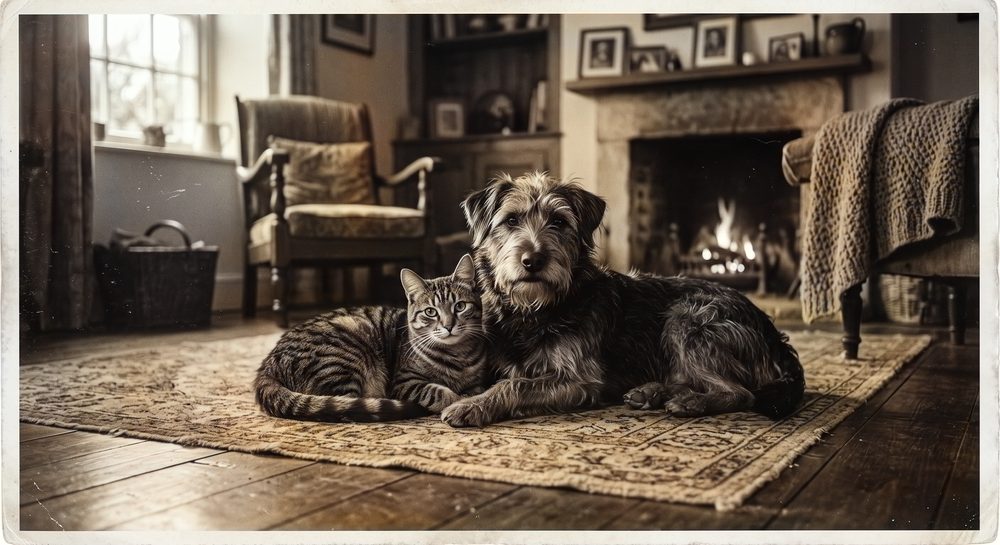
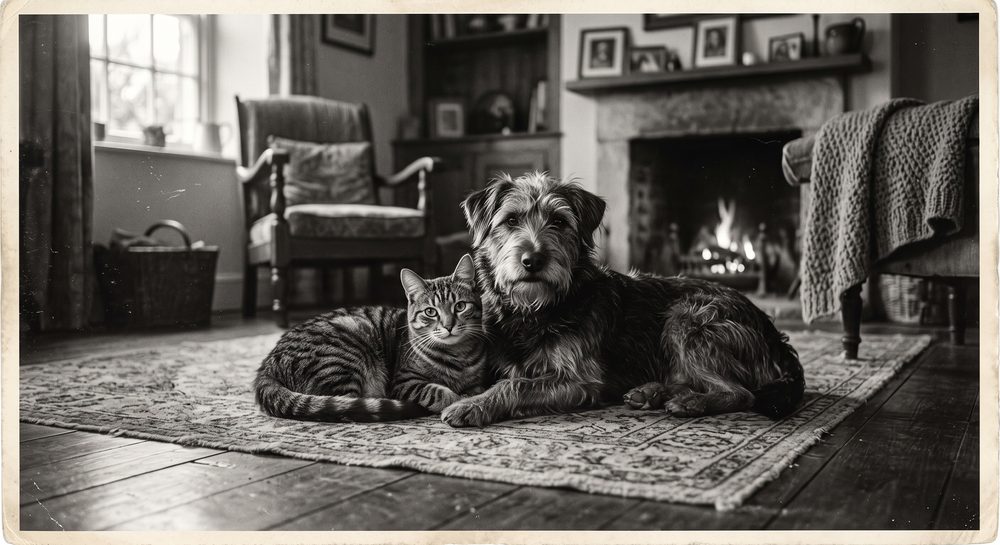
Adds colour to a black and white shot. The brightness channel is left alone — resolution and sharpness do not change.
How to use it
Drop the photo in
Drag it into the area above or click to choose. Any black and white frame will do — a scan, a print, or a copy taken with your phone.
Pick a character and apply
Natural or Vivid. If the result stays washed out, raise the saturation; the two give clearly different results on the same photo.
Compare and download
Use the before / after line to see where the colour landed. If you do not like it, undo and try other settings — there is no limit.
What this tool does
It does not touch brightness
The photo is split into brightness and colour. The brightness — the picture itself — is taken from your original file untouched; the model only answers the question “what colour belongs here?”.
In practice that means: resolution, sharpness and texture never change.
The colour is not “correct”
The model has learned that skies are blue and grass is green; but it cannot know whether your grandfather's jacket was brown or navy. What it produces is a plausible guess, not a record.
Wonderful for bringing a family album back to life; not for saying “that jacket was this colour”.
The result is the same every time
There is no randomness in the model. The same input and the same settings always give the same output — so you can play with the settings without fear of losing a good attempt.
Which colour character
The default
Restrained, believable colour. Best for portraits and family photographs.
More saturated
Bolder colour. Better on very faded, very old or low-contrast frames; it sometimes overdoes it. If the result stays dull, push the saturation to 130–150%.
When it works well
Scenes the model has seen a lot of
Outdoor landscapes, portraits of people, street photography, food, animals.
Unusual framing
Close-up objects, abstract patterns, scans of documents and text, very dark or badly blown-out frames.
“Could be any colour” objects
On clothes, cars and paint the model usually picks a muted, neutral colour because it cannot be sure. That is not a fault — it is an honest guess.
Existing colour is dropped
Hand it a colour photo and the model throws the existing colour away and puts its own guess in. The tool notices and warns you; the call is yours.
For a better result
Upscale first
If the photo is very small, run it through Image Upscaler first; the more detail the model can see, the better its colour choices.
Crop the white border
The white border around a scanned print can be read as part of the scene and pull the colour balance off.
Turn a faded scan grey first
On a scan with a heavy yellow-brown cast, converting to greyscale first improves the result noticeably.
Common questions
The result came out washed out — what should I do?
Try the “Vivid” character first, then push the saturation into the 130–150% range. Where the model is unsure it deliberately picks muted colour.
Faces come out greenish or purple
That usually happens when the scan's colour balance is off. Convert the photo to greyscale first and try again.
If I colorize the same photo twice, do I get the same result?
Yes. There is no randomness in the model — the same input and settings always give the same output.
Can I paint a specific area the colour I want?
Not yet. One of the models used here supports user hints; that interface may be added later.