Enlarge an image
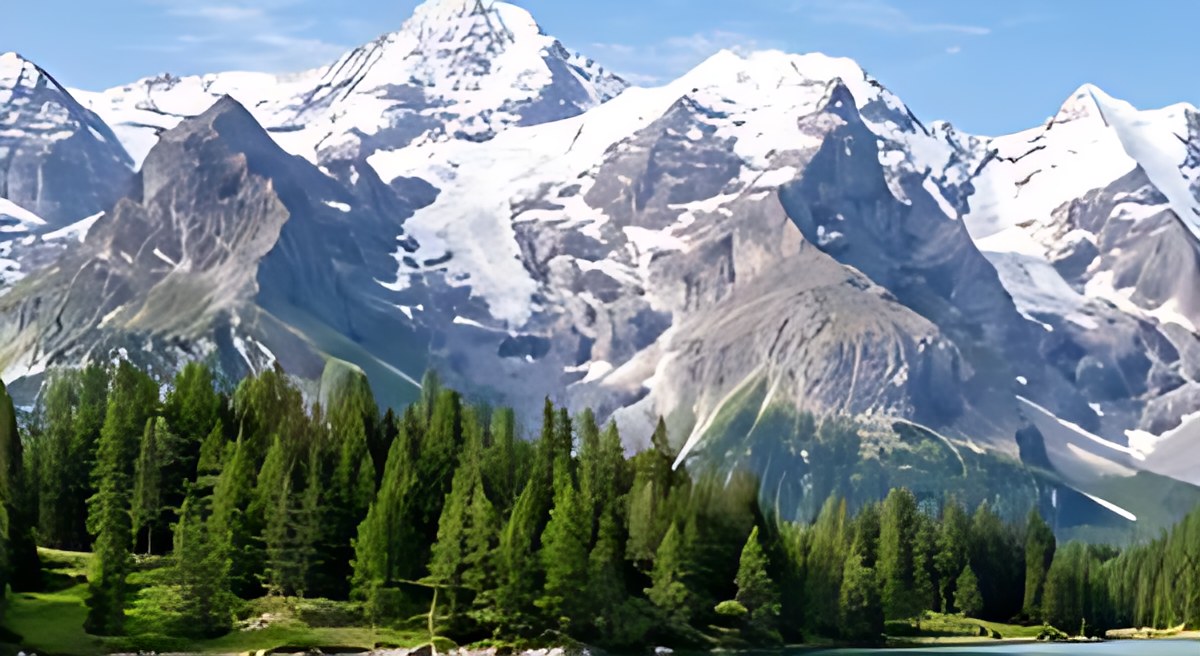
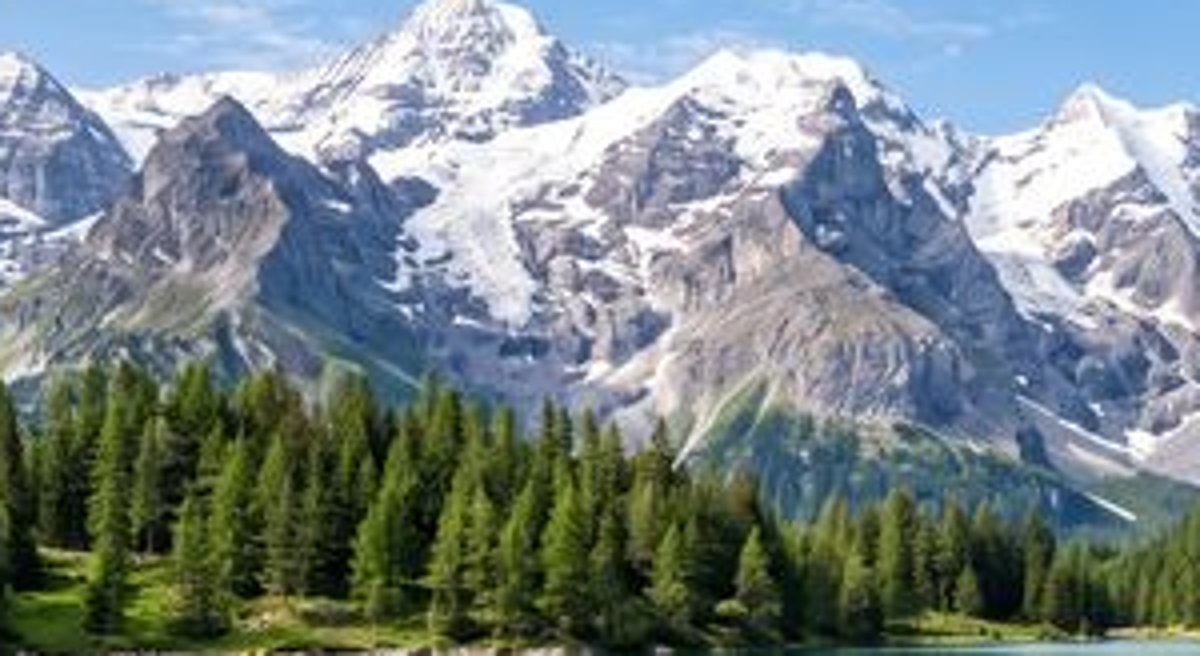
Take a small or blurry shot 2× or 4× larger. Pixels are not stretched — lost detail is rebuilt.
How to use it
Drop the photo in
Drag it into the area above or click to choose. As soon as the file arrives the tool switches to a full-screen workbench; you never have to read anything.
Pick the factor and apply
2× or 4×. The sharpening setting decides how hard the result is pushed; keeping it low on faces gives a more natural picture.
Compare and download
Drag the before / after line to see what the model added. If you do not like it, undo, change the setting and apply again.
What this tool does
Detail that got lost
Low resolution, mild blur, the blocky artefacts JPEG leaves behind, texture lost to compression. The model redraws edges and textures; it does not stretch pixels the way a plain “resize” command does.
Information that was never recorded
A shot that missed focus, heavy motion blur, detail that was never in the frame. The model improves what it can see; it does not invent what is absent.
Faces get guessed at
On faces the model sometimes invents detail. Do not use it for identification, forensic work or anything evidential — the output is a plausible guess, not a record of what was there.
If the photo needs more than one job
This page does one thing
Only upscaling lives here — few settings, a plain screen. If the photo has other problems too, the order below matters.
Marks first, then upscaling
Enlarge a scratched frame and the model treats the scratch as real detail and sharpens it too. Colorizing belongs last: the more detail the model can see, the better its colour choices.
All three on one photo
Restore Old Photos opens the same engine with tabs: load the photo once and apply the three steps in order. Between steps the file travels as PNG, so no compression marks pile up.
Common questions
Faces come out strange
Faces sometimes end up too smooth in this tool. Lowering the sharpening usually gives a more natural result; a dedicated face-restoration step is coming as well.
Is 4× always better than 2×?
No. If the source is already large, 4× takes longer and can make textures look plastic. Use 4× on small scans and 2× on anything already a decent size.
The file got very big
That is expected: 4× multiplies the pixel count by sixteen. To bring it down, run the result through Compress Image.