Restore an old photo
Clear away scratches, stains and tears; then, on the same frame, sharpen it and add colour if you want.
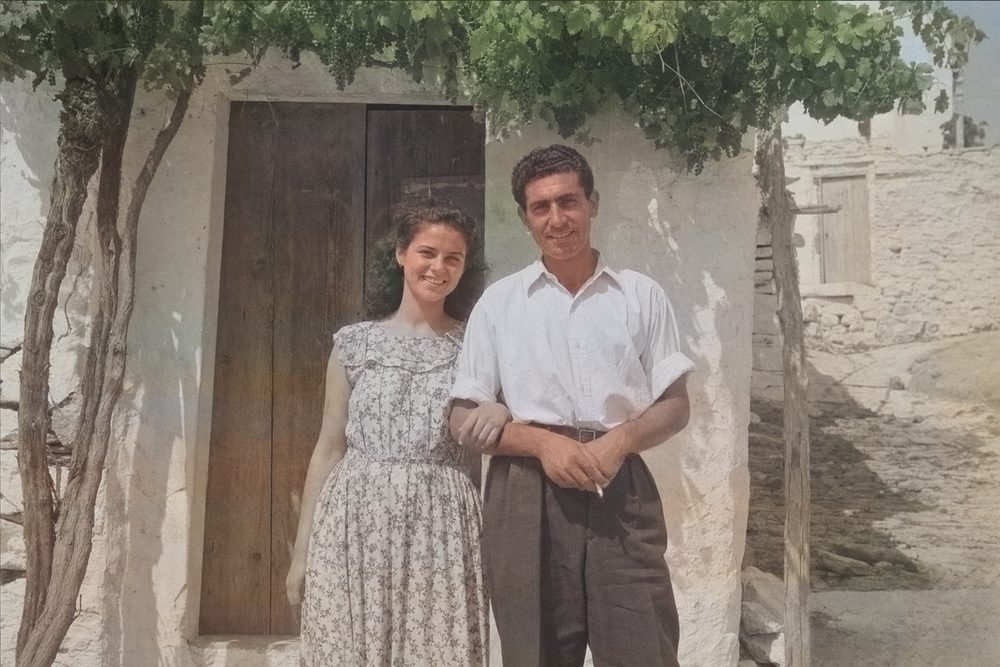
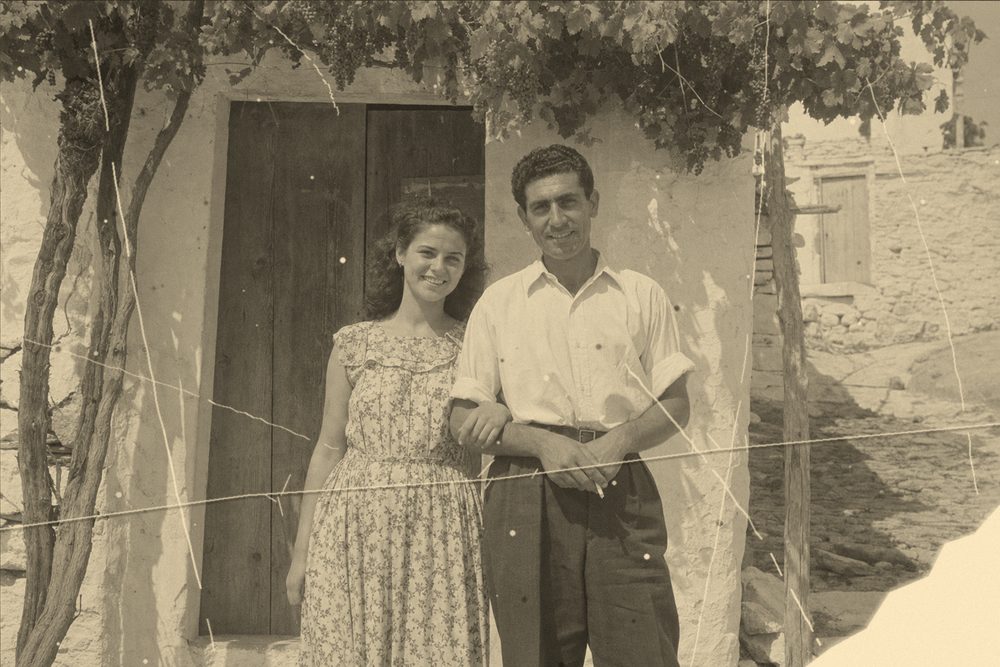
Three jobs, one photo
Remove marks & objects
Fills in whatever you brush over by reading the texture around it. Scratches, stains, tears, fold lines, date stamps.
Upscale & sharpen
Raises the resolution and rebuilds lost detail. The step that helps most on small scanned prints.
Colorize
Adds colour to a black and white frame. The brightness channel is left alone, so sharpness never changes.
All three work in sequence on the same photo — you never have to download the file and load it into another tool in between.
The order we suggest
Clear the marks first
Enlarge a scratched frame and the model reads the scratch as “real detail” and sharpens it too; the damage doubles.
Then upscale
Now the frame is clean, so the model only strengthens the texture that is genuinely there.
Colorize last
The more detail the colour model can see, the better its choices. It is not a rule though: move between the tabs as you like, and cancel any step you dislike with undo.
Tips for clearing scratches and stains
Thin the brush and trace the line
A brush thicker than it needs to be throws away the good texture around the mark.
Regular surfaces are easy
The model invents the area you paint by looking at its surroundings. On regular surfaces — sky, wall, fabric, grass — the result is close to flawless.
Big tears are guesswork
On a large tear running through a face, the model invents “a plausible piece of face”; that piece does not belong to that person. Fine for small damage — know what you are doing on large damage.
Shadow left behind? Raise the margin
If the object's shadow or a halo around it survives, raise the edge margin, or paint that part again in a second pass.
Work in pieces
Clearing a large area in several smaller passes gives a clearly better result than painting it all at once.
What to expect
Surface damage
Scratches, stains, fold marks, faded prints, low-resolution scans, black and white family photographs.
Heavy damage
Tears that take out half a face, frames that missed focus entirely, serious water damage, very dark exposures.
A keepsake, not a document
Removing, upscaling and colorizing all produce guesses. The result makes a lovely keepsake; it is not a document. Do not use it for identification, forensic or archival purposes.
Common questions
I photographed the print with my phone instead of scanning it. Is that fine?
It is, but shoot it on a flat surface, without shadows, holding the camera square to the photo. Shooting at an angle leaves perspective distortion — the tool does not correct that.
My photo is in colour but badly faded
The colorize step drops the existing colour and puts its own guess in; on faded yellow-brown scans that usually gives a better result. The tool notices that the input is in colour and warns you — the call is yours.
Can I apply the same step twice?
Yes. It is especially recommended for removing marks: clearing a few marks per pass beats painting all of them at once.